ONE_Filter8 Interface Guide
See what each tab does, and why it matters.
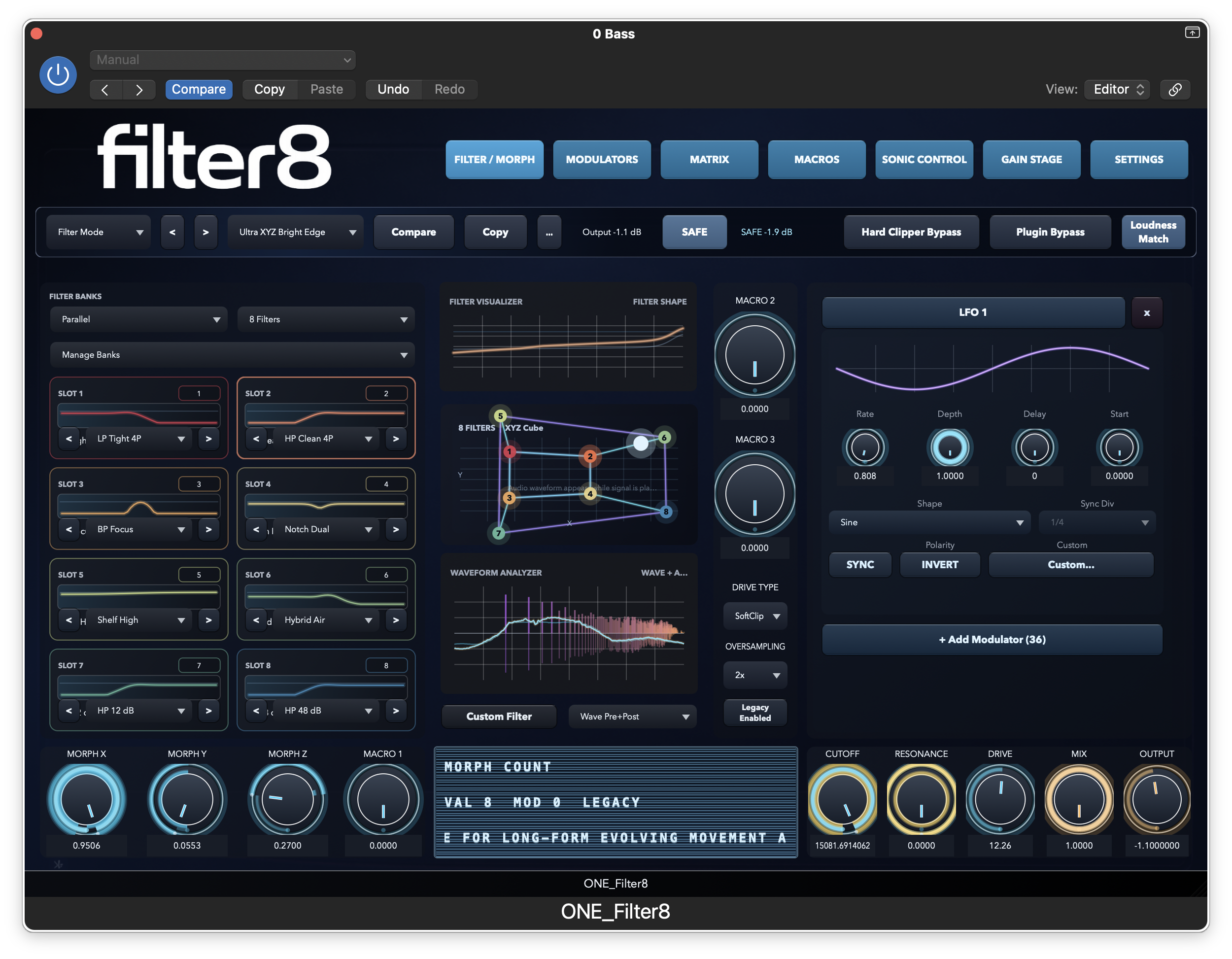
This guide uses the live UI screenshots from the project to walk through the main working areas of ONE_Filter8: filter morphing, modulation, matrix routing, macros, and sonic control. It also breaks out the current filter catalog and the practical use cases of the modulation system.
Tab 01
Filter / Morph
This is the center of the plugin. It defines how many filter slots you are using, how they are routed, how morphing moves across X / Y / Z space, and which filter models each slot is holding at any moment.
What this tab is for
- Choose 2, 4, or 8 filter-slot layouts depending on how much movement depth you want.
- Move through the filter field with Morph X, Morph Y, and Morph Z.
- Shape how the morph travels using Morph Intensity, Morph Time, and Morph Curve.
- Change the signal path with Parallel, Serial, Split, or Mid/Side routing.
- Swap individual slot models instead of staying inside one fixed filter type.
- Draw and store custom filter curves when the stock shapes are not the destination.
2 / 4 / 8 slot modes
X / Y / Z morph axes
Linear / EqualPower / S-Curve
Parallel / Serial / Split / Mid-Side
Use this tab when the job is movement, contrast, routing experimentation, and selecting the shape family that the rest of the modulation system will animate.
Legacy workflows
Legacy mode is where the wider filter personality set opens up. It includes the original smooth, tight, wide, narrow, deep, dual, shelf, hybrid, comb, phaser, formant, and custom-drawn model families.
Use Legacy when you want the broader character palette, more aggressive creative models, or the older multi-family combinations that are not restricted by Z-Plane compatibility rules.
Z-Plane workflows
In very simple terms, Z-Plane here means a guided blend between two filter states, not a giant 8-point 3D cube. In this project it is a controlled morph workflow rather than a separate named model list.
It locks the engine to 2-slot Parallel operation and keeps the slots inside compatible categories: Low-pass, High-pass, Band-pass, Notch, and Peak. Use it when you want a safer, more predictable blend between related filter types.
The easiest way to think about the difference is this: `8-slot` mode is like laying out many destinations on a map so you can travel around a larger space, while `Z-Plane` mode is like taking one carefully controlled road between two chosen points.
The plugin also has a `Morph Z` control in 8-slot mode, but that is not the same thing as `Z-Plane` mode. `Morph Z` is one of the movement axes in the larger morph layout. `Z-Plane` mode is a separate, simplified workflow for stable two-filter transitions.
Tab 02
Modulators
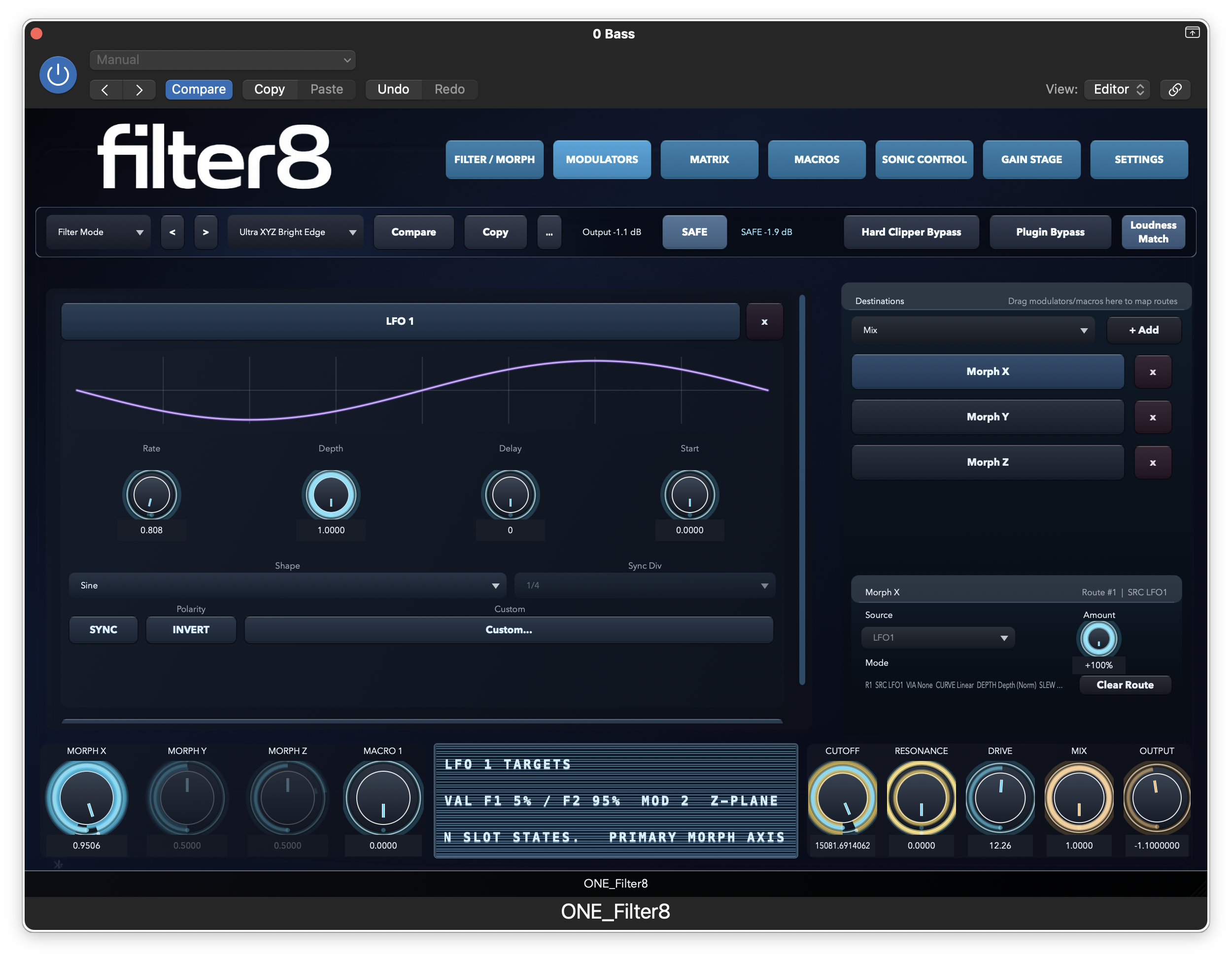
The Modulators page is where movement sources are created. It covers cyclic motion, triggered envelopes, sidechain-responsive behavior, macro sources, buses, processors, MIDI-derived control, and parameter taps.
What this tab is for
- Build repeating motion with 3 LFOs and 28 shape choices including Custom.
- Build event-shaped movement with 3 envelopes and selectable trigger modes.
- Turn incoming audio into control with sidechain follower and trigger behavior.
- Expose performance control through macros, buses, processors, MIDI sources, and parameter taps.
3 LFOs
3 envelopes
Sidechain follower / trigger
MIDI + parameter taps
LFO use cases
- Use LFOs for repeating sweeps, wobble, pulsing width changes, evolving Morph X/Y/Z paths, and tempo-locked rhythmic motion.
- Delay and start phase help stage movement so a sound opens after a beat instead of instantly.
- Key-tracked sync keeps LFO timing tied to incoming pitch when you want performance-sensitive movement.
- Custom LFO shapes are for drawing motion patterns that standard sine, triangle, stepped, or rhythmic shapes do not cover.
Envelope and follower use cases
- Use envelopes when movement should respond to note hits or triggers rather than looping forever.
- Use sidechain follower when filter or drive behavior should track incoming level dynamically.
- Use sidechain trigger modes when modulation should fire from audio events, clock divisions, MIDI, or the main input path.
- These tools are what shift ONE_Filter8 from static tone shaping into reactive mix and performance behavior.
Source groups and what they are used for
Macros 1 to 4
Manual performance controls for live gestures, automation passes, or simplifying several movements into one hand or one lane.
Buses 1 to 4
Intermediate control lanes used to combine or distribute movement before it reaches final destinations.
MIDI sources
Gate, Velocity, Key, Pitch Bend, Mod Wheel, Aftertouch, and Sustain let incoming performance data reshape the plugin in real time.
Parameter taps
Cutoff Pre/Post and Resonance Pre/Post taps let internal parameter motion be reused elsewhere for feedback-style or linked movement.
Processor types and practical use cases
Switch
Useful when you want a control source to flip between states rather than glide continuously.
Sum
Combine two modulation sources into one stronger or more complex movement path.
Multiply
Scale one motion source by another so activity only happens when both are active.
Min / Max
Keep the lower or higher of two control signals for constrained or priority-based movement.
Abs
Turn bipolar movement into positive-only motion when you want modulation to push in one direction.
Diode
Useful for asymmetrical response, especially when a source should react more strongly on one half of its cycle.
FlipFlop
Alternate states on triggers for stepped pattern changes, switch-like macros, or alternating slot behavior.
Gain
Scale control range before it hits the matrix, useful for taming hot sources or exaggerating a subtle one.
Quantizer
Turn smooth motion into stepped stages for sequenced-style cutoff jumps, stepped morphing, or hard automation shapes.
Lag
Smooth abrupt changes so gestures, triggers, or macro moves feel more fluid and less click-prone.
Tab 03
Matrix
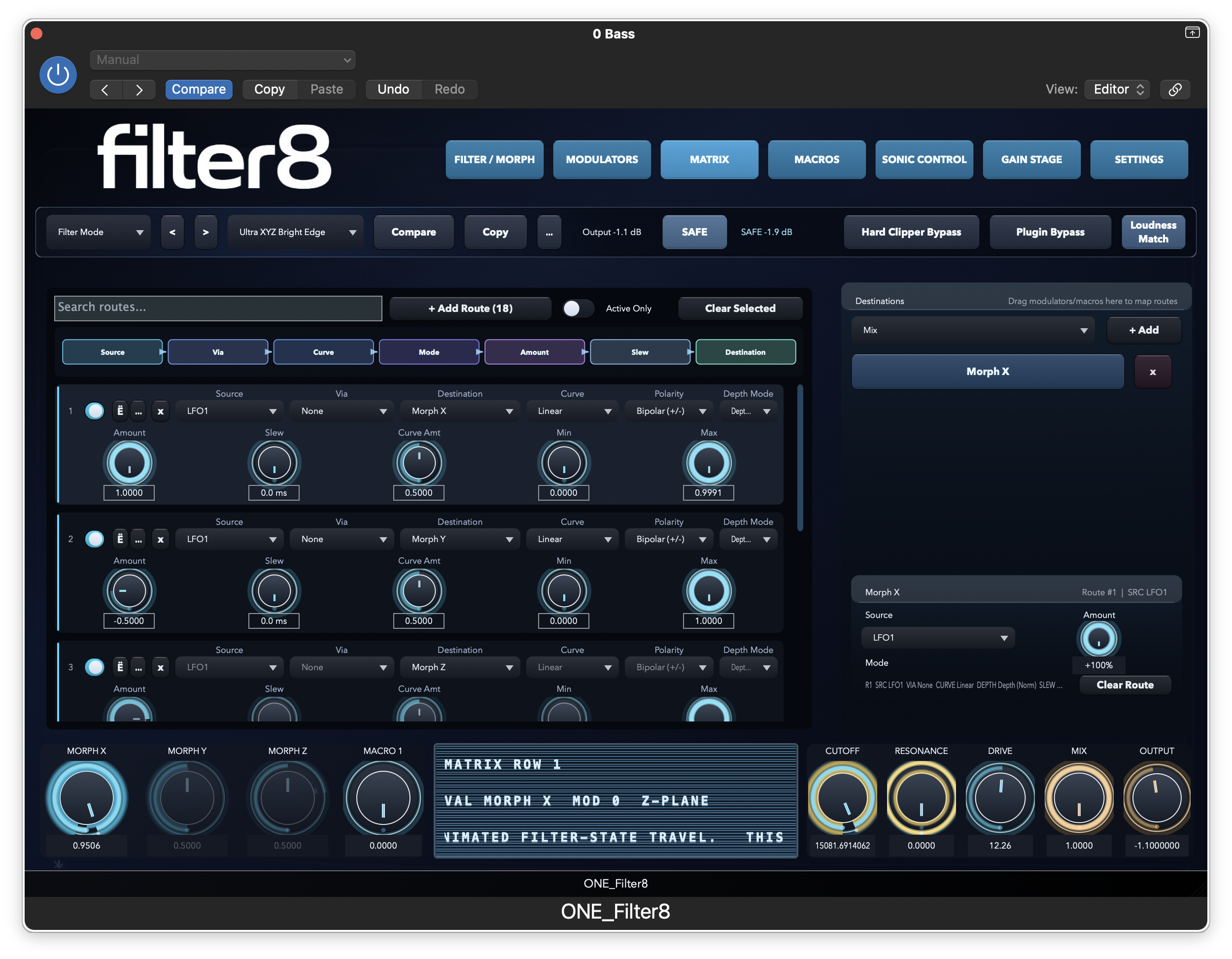
The Matrix is the routing hub. This is where sources are assigned to destinations and where each route is shaped with polarity, slew, curve, clamp range, and route order.
What this tab is for
- ONE_Filter8 gives you 24 modulation routes.
- Each route includes Source, Via, Destination, Amount, Mode, Slew, Curve, Curve Param, Min / Max clamp, and Route Order.
- Drag-and-drop from source cards creates or updates routes quickly.
- Dropping on filter slots can auto-map to Morph axes with slot-dependent polarity.
Use the Matrix when you want modulation to be deliberate instead of incidental. It is where movement gets turned from an idea into a controlled behavior.
Route controls explained
- Source: the main motion or control signal.
- Via: an extra shaping or gating stage before the destination.
- Destination: the parameter being moved.
- Amount and Mode: decide how strongly and in which polarity the route acts.
- Slew: smooths sudden changes over time.
- Curve and Curve Param: reshape the way movement is distributed.
- Min / Max clamp: keep motion inside a safe range.
- Route Order: defines processing priority when several routes interact.
Matrix use cases
- LFO to Morph X for repeating movement.
- Envelope to Drive for note-shaped saturation behavior.
- Follower to Cutoff for audio-reactive tone control.
- Macro to several destinations at once for performance sweeps.
- Route Amount targets for meta-modulation, where one source reshapes another route.
Tab 04
Macros
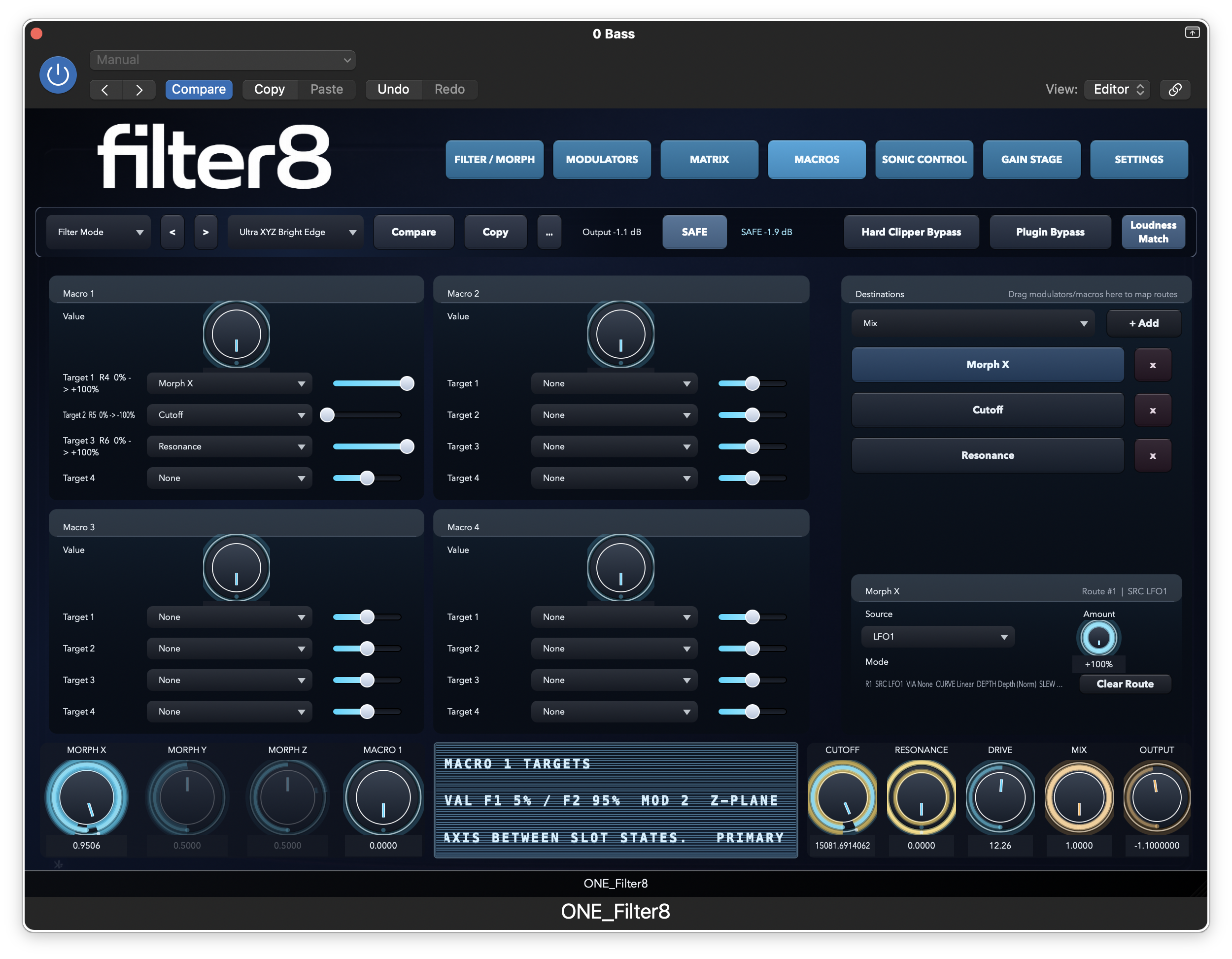
The Macros page is the performance surface. It takes large systems of movement and reduces them to a handful of playable controls that can be automated, learned from MIDI, or used live.
What this tab is for
- 4 macro controls are available.
- Each macro can target up to 4 destinations.
- Each target can use its own depth amount.
- Each macro has Min / Max range locks.
- MIDI learn lets external controllers drive macro movement.
Use Macros when you want one move to coordinate cutoff, drive, mix, morph axes, or stereo changes without riding many separate controls.
Macro use cases
- Build one performance knob that opens cutoff, adds drive, and shifts mix together.
- Put Morph X and Morph Y on one macro for playable motion sweeps.
- Use range locks to stop automation from overreaching safe settings.
- Use MIDI learn when the plugin needs to respond to hardware immediately.
Why it matters
Complex modulation is useful, but only if it can be played. Macros are how ONE_Filter8 turns dense matrix setups into something practical for writing, performance, and recall.
Tab 05
Sonic Control
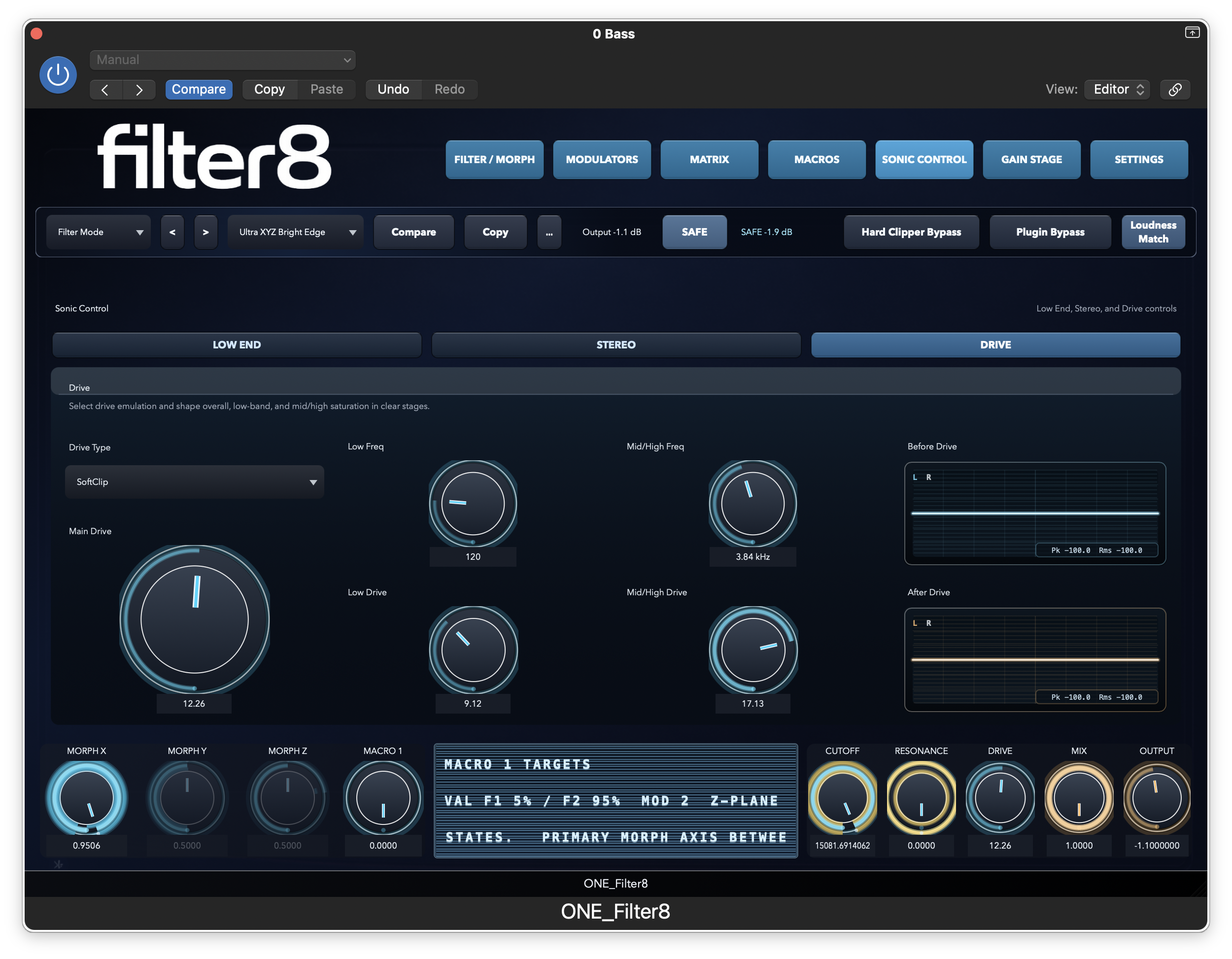
Sonic Control groups the practical tone-shaping and safety tools: low-end handling, stereo shaping, drive, and the output-protection side of the instrument.
What this tab is for
- Choose drive type and shape how much low-band and mid/high-band saturation is added.
- Manage low-end behavior and low-end taming tools.
- Control stereo width and width split behavior.
- Balance wet / dry mix, input trim, output trim, loudness matching, and output protection features.
Drive / saturation
Low-end management
Stereo width
Mix-safe output tools
Drive and tone shaping
- Use the drive stage when a sound needs body, contour, edge, or more animated harmonic movement.
- Low-band and mid/high-band controls let saturation react differently across the spectrum.
- Drive is where the plugin moves from filtering into outright tone shaping and impact control.
Low-end and stereo
- Use low-end tools when sub information needs taming or cleaner control before the rest of the chain moves.
- Use stereo width when a part needs opening, narrowing, or better balance between low and high width behavior.
- These controls keep creative movement usable inside actual mixes.
Output, safety, and performance-aware features
Wet / dry and trim staging
Use wet/dry, input trim, and output trim to place the effect musically without losing level context.
Loudness Match
Useful when comparing processed and unprocessed states without level bias leading the decision.
SAFE limiter and output clip stage
Protection features that help keep experimentation from turning into accidental overload.
Oversampling and Ultra Low Latency
Choose higher internal quality when designing, or reduce latency when tracking and immediate response matters more.
Visualizer and waveform / filter views
Helpful when you want visual feedback on movement, shape, or how the signal is reacting.
Performance monitor
Useful for CPU and latency awareness when running larger sessions or more complex modulation setups.
Filter Catalog
The current model families in the project.
The repo currently defines 93 filter models. The named list below is grouped by family so the catalog stays readable, while still showing the actual model names that exist in the current source.
Legacy core models
Use these when you want the original smooth, tight, wide, narrow, deep, dual, shelf, and hybrid behaviors.
Open list
- LP Smooth 2P, LP Smooth 4P, LP Tight 2P, LP Tight 4P
- HP Clean 2P, HP Clean 4P, HP Tight 2P, HP Tight 4P
- BP Wide, BP Narrow, BP Dual, BP Focus
- Notch Wide, Notch Narrow, Notch Dual, Notch Deep
- Peak Soft, Peak Sharp, Shelf Low, Shelf High
- Hybrid Tilt, Hybrid Hollow, Hybrid Punch, Hybrid Air
Z-Plane-compatible families
Z-Plane does not introduce a separate named model bank in the current project. Instead, it constrains the engine to compatible categories for stable morph behavior.
Compatible categories
- Low-pass
- High-pass
- Band-pass
- Notch
- Peak
Core / EQ filters
These cover the structured slope, bell, shelf, brickwall, and tone-shaping side of the catalog.
Open list
- LP 6 dB, LP 12 dB, LP 18 dB, LP 24 dB, LP 36 dB, LP 48 dB
- HP 6 dB, HP 12 dB, HP 18 dB, HP 24 dB, HP 36 dB, HP 48 dB
- Band-pass
- Notch (Narrow), Band-stop (Wide)
- All-pass
- Peaking-Bell
- Low Shelf, High Shelf
- Tilt EQ
- Brickwall LP, Brickwall HP
Analog / character models
Use these when the goal is a more character-led filter response or model family contrast inside a morph setup.
Open list
- SVF LP-BP-HP Morph
- Transistor Ladder
- Diode Ladder
- SEM-style
- Sallen-Key style
- MS-20 HP-LP Pair
Creative / modulation models
These are the more animated filter families for resonant motion, comb behavior, formant shaping, and wah-like movement.
Open list
- Comb (Feedforward), Comb (Feedback)
- Formant-Vowel, Resonator Bank
- All-pass Chain
- LP-BP-HP Morph
- Twin-peak Dual-peak
- Auto-wah Envelope BP
Dynamic / utility models
These are more task-oriented models for level-reactive, sidechain-aware, crossover, and phase-behavior workflows.
Open list
- Dynamic Filter
- Sidechain-reactive Filter
- M-S Filter Mode
- Multiband 2-band, Multiband 3-band, Multiband 4-band
- Linear-phase Mode
- Minimum-phase Mode
Content-focused macros
These presets are named around common sources and use cases rather than generic filter topology labels.
Open list
- Vocal Focus, Vocal Air, Vocal De-ess Notch
- Bass Tight, Bass Sub-Clean, Bass Growl
- Lead Presence, Lead Bite
- Pad Warm, Pad Wash, Pad Air, Pad Motion
Legacy creative and custom models
These carry the older creative comb, phaser, formant, and custom-drawn behaviors forward in the project.
Open list
- Comb FF Short, Comb FF Long, Comb FB Short, Comb FB Long
- Phaser 4, Phaser 6, Phaser Deep, Phaser Wide
- Formant 1, Formant 2, Formant 3, Formant 4
- Custom Drawn
How to think about the catalog in practice
Low-pass and high-pass families
Use gentler slopes for broad shaping and steeper slopes when you need more decisive cutoff behavior.
Band-pass and notch families
Use them when the sound needs focus, carve-outs, de-emphasis, or more animated frequency windows.
Peak, shelf, and tone families
Use them when the job is voicing and emphasis rather than obvious filter sweeps.
Comb, phaser, formant, and resonator families
Use them when the goal is movement, color, vowel behavior, or more overt sound-design contrast.
Continue
See the product page, then get the build you need.
The homepage stays focused on the sales view. This guide is the deeper interface breakdown. When you are ready to install, the current release library keeps macOS and Windows early-access downloads in one place.